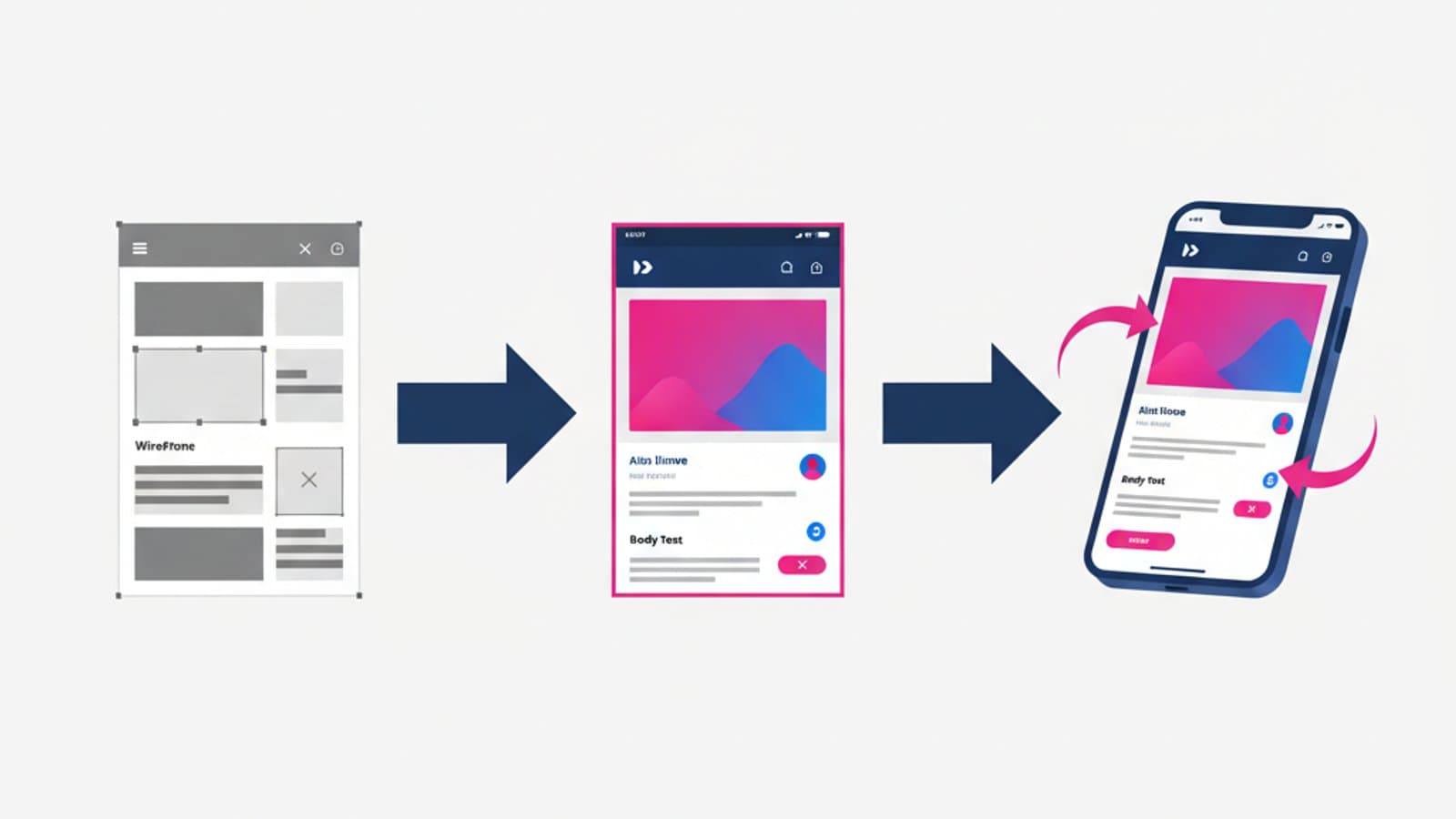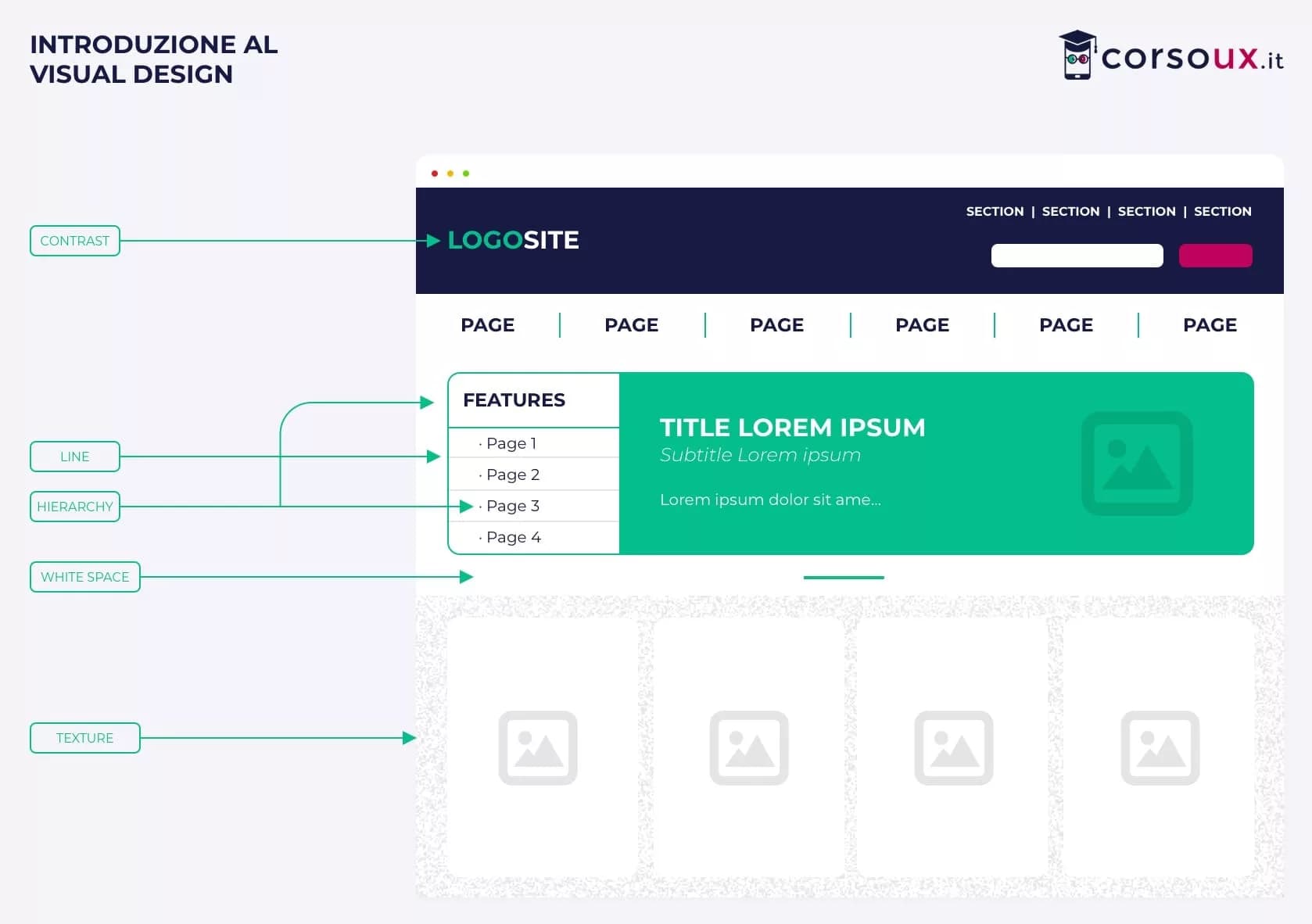
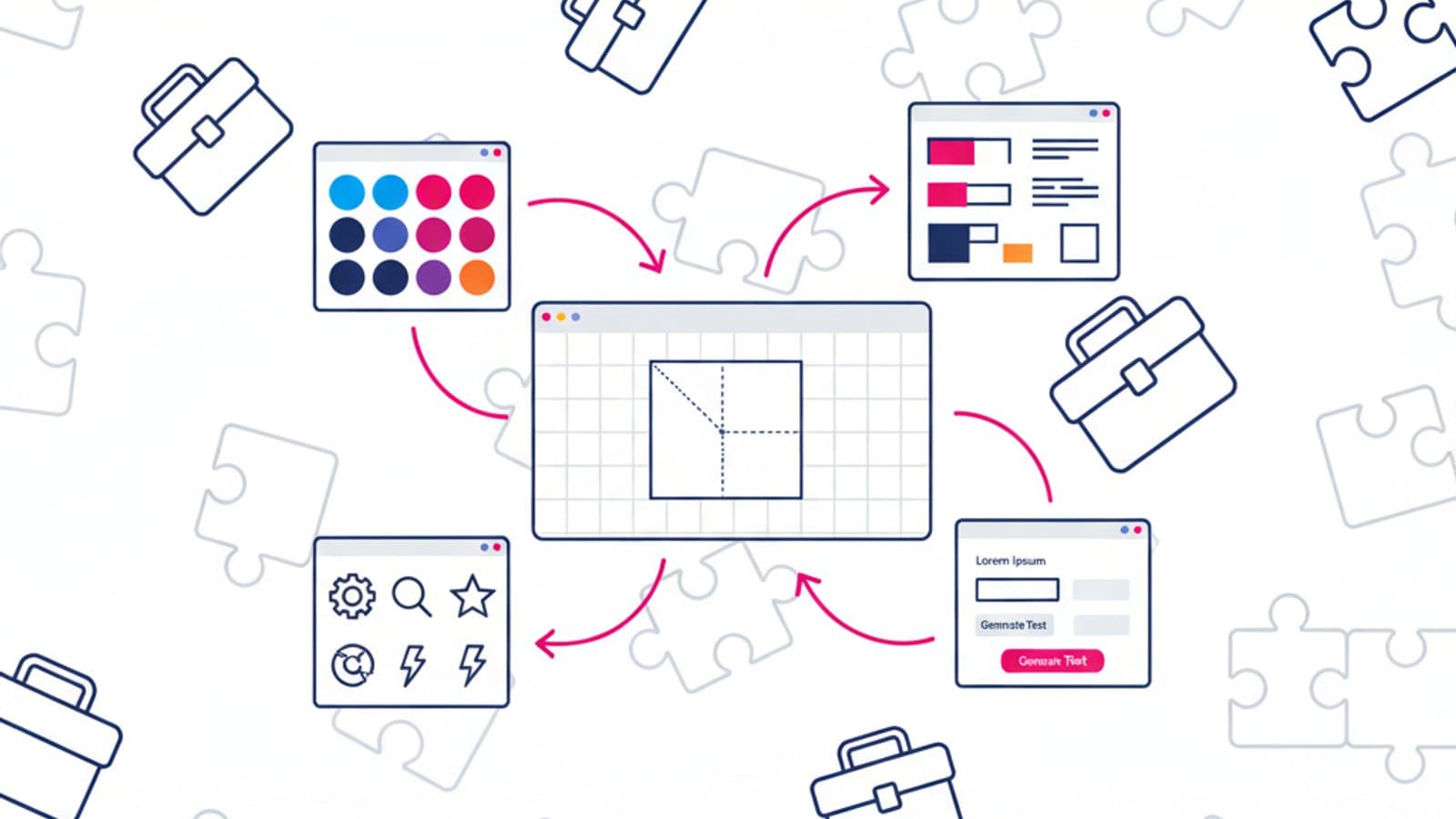
In 2026, Figma is no longer just a design tool—it's an ecosystem of hundreds of community-built plugins and thousands of templates, many of them free. A designer who knows the right plugins can save 10-15 hours a week on repetitive tasks like creating wireframes, managing colors, exporting assets, and testing for accessibility.
The problem is that navigating the Figma Community blindly is overwhelming: thousands of plugins of varying quality, unreliable reviews, and no official "best of" guide. In this guide, we've compiled 30 plugins and templates tested in our CorsoUX courses, organized by category, with setup instructions and practical use cases.
What you'll learn in this guide:
- How to find quality plugins in the Figma Community
- 10 essential plugins for UX design (wireframing, research, accessibility)
- 10 powerful plugins for UI design (icons, colors, typography)
- 10 free templates to kickstart your projects
- How to install, uninstall, and manage plugins without slowing down Figma
- Paid plugins that are worth the investment
How to Find Quality Plugins in the Figma Community
The Figma Community has over 5,000 published plugins. Most are experimental or low-quality. Here are three criteria to filter them:
- Number of active users (visible on the plugin page): Over 50,000 is a strong signal of quality.
- Last update date: If it hasn't been updated in the last 12 months, avoid it—Figma's API changes frequently.
- Number of reviews and rating: Look for plugins with >100 reviews and a rating of ≥ 4.5/5.
How to access the Community from Figma:
- From the app: Top-left menu → "Explore community"
- From the web: https://www.figma.com/community
- Search by category, tag, or name.
10 Essential Plugins for UX Design
1. Content Reel
What it does: Populates your designs with realistic content (names, images, avatars, email addresses) with one click. Just select a text layer and choose the type of content you need.
When to use it: Prototypes, mockups, presentations. It replaces "lorem ipsum" with plausible content.
Alternatives: Unsplash (images only), Lorem Ipsum (text only)
2. Autoflow
What it does: Automatically draws flow arrows between screens for prototypes and user journeys. The arrows stay connected when you move elements.
When to use it: User flows, task flows, and prototype documentation.
3. Figmotion
What it does: Allows you to create animations directly inside Figma, without exporting to After Effects. Useful for micro-interactions, hover states, and loading states.
When to use it: Animated prototypes and motion design presentations.
4. Wireframe
What it does: A library of pre-built, low-fidelity wireframe components. Headers, cards, forms, buttons, grids—all in grayscale.
When to use it: Early project stages when you want to focus on structure without getting distracted by visuals.
5. Stark
What it does: The most comprehensive plugin for accessibility testing in Figma. It checks color contrast (WCAG AA/AAA), simulates 8 types of color blindness, and suggests automatic fixes.
When to use it: In every project, not just "when accessibility is needed." It should always be active.
Note: The free version covers 80% of features. The Pro version adds a contrast checker, VoiceOver simulator, and link validation.
6. Able
What it does: A simpler yet powerful alternative to Stark. It shows the color contrast in real-time as you work, without needing to open a separate panel.
When to use it: For a fast workflow where you prefer automation over detailed reports.
7. FigJam (Built-in)
What it does: Not a plugin, but an often-overlooked Figma feature. FigJam is the built-in whiteboard perfect for ideation workshops, affinity mapping, journey mapping, and design thinking sessions.
When to use it: For all collaborative moments in the UX process.
8. User Research Plugins
What they do: Provide templates for empathy maps, personas, user flows, and customer journeys. There are dozens available.
The best ones: Search for "user persona" or "empathy map" in the community and choose those with 50k+ installs.
9. Chart
What it does: Generates charts (bar, line, pie, scatter) inside Figma based on real data. Useful for dashboard design without exporting from Google Sheets or Excel.
When to use it: Dashboard UIs, mockups for analytics tools, and report design.
10. Html to Figma
What it does: Imports content from live URLs directly into Figma. Useful for UX audits of competitor sites or for redesigning existing sites based on the current version.
When to use it: Competitive analysis and redesigns of existing websites.
10 Powerful Plugins for UI Design
11. Iconify
What it does: Provides access to over 150,000 icons from 100+ collections (Material, Phosphor, Lucide, Tabler, etc.) directly from Figma. All can be imported with a single click.
When to use it: In any project that requires icons. It's the most widely used resource.
12. Phosphor Icons
What it does: A dedicated plugin for Phosphor Icons, one of the cleanest and most versatile icon libraries of 2026. It includes over 9,000 icons in 6 weights.
When to use it: When you need a consistent and flexible icon library.
13. Unsplash
What it does: The official Unsplash integration for inserting free stock images directly into your designs. Search, select, and insert—no more copy-pasting.
When to use it: Mockups, presentations, and header images.
14. Color Palettes
What it does: Generates balanced and accessible color palettes. It includes predefined palettes from Material Design, Tailwind, and Apple's Human Interface Guidelines.
When to use it: At the start of any new project or design system.
15. Color Kit
What it does: An alternative or complement to Color Palettes. It generates color scales (50, 100, 200...900) from a single seed color. Essential for design systems.
When to use it: When creating a design system with hierarchical color tokens.
16. Lorem Ipsum
What it does: The classic plugin for generating placeholder text. It's smarter than standard web generators, adapting the text length to fit the container.
When to use it: Quick wireframes and mockups.
17. Figma to HTML / Anima
What it does: Exports Figma designs into usable HTML, CSS, and even React code. The free version is limited, but the Pro version is great for professional use.
When to use it: Developer handoff and creating clickable HTML prototypes.
18. Similayer
What it does: Finds and automatically selects similar layers in your document (e.g., all primary buttons, all cards with the same structure). A huge time-saver on complex files.
When to use it: Files with many repeated elements that need to be updated in bulk.
19. TinyImage Compressor
What it does: Compresses images directly in Figma before you export them. Reduces the size of your Figma file and the final assets.
When to use it: When exporting assets for production.
20. Auto Layout Migrator
What it does: Converts "static" frames to auto-layout in a single click. Saves hours on legacy files.
When to use it: When you take over old files that don't use auto-layout.
10 Free Templates from the Figma Community
Templates are different from plugins: they are ready-to-use Figma files that you can duplicate and modify. These are some of the most useful ones:
21. iOS 17 UI Kit
Search for "iOS 17 UI Kit" in the community. It contains all the updated native iOS components: tab bars, navigation bars, forms, modals, and action sheets.
When to use it: Designing native iOS apps without rebuilding base components.
22. Material Design 3 Kit
The official Google Material Design 3 kit is available in the Community. It includes all the components from the world's most popular design system.
When to use it: Native Android projects and Google-style products.
23. Untitled UI (Free Version)
The most downloaded free design system in the Figma Community. It includes over 1,000 components with variants, auto layout, and typography styles. The free version is more comprehensive than most paid design systems.
When to use it: For startups that need a solid foundation without building a design system from scratch.
24. Daily UI Challenge Template
A template with 100 pre-defined design challenges. Great for junior designers who want to practice daily and build their portfolio.
When to use it: During the learning phase or for building a junior portfolio.
25. Wireframe Kits
There are dozens of free wireframe kits. Search for "wireframe kit" and choose one with the most duplicates. The best ones have 200+ components (headers, heroes, cards, forms, footers).
When to use it: In the initial project phase for rapid wireframing.
26. User Persona Template
Search for "user persona template." You'll find dozens of variations. The best ones in 2026 have 8 sections (name, needs, behaviors, frustrations, etc.) and a clean layout.
When to use it: Synthesizing user research.
27. User Journey Map Template
A template for customer journey maps with 6 phases and 4 rows per phase (action, touchpoint, emotion, pain point). Learn more about journey maps here.
When to use it: Mapping a multi-stage user experience.
28. Empathy Map Template
The classic 4-quadrant template (Says, Thinks, Does, Feels). Useful for synthesizing interviews.
When to use it: During the Empathize phase of Design Thinking.
29. Design System Template
A structured kit for building a design system from scratch: tokens, base components, and documentation. A useful scaffold when starting a new product.
When to use it: At the start of a project with no existing design system.
30. Mockup Frames
A template with frames for presenting mockups: iPhone, MacBook, and iPad at various angles. Perfect for portfolio case studies.
When to use it: Final project presentations and portfolios.
Essential Figma Shortcuts
Besides plugins, you can speed up your workflow by learning 10 key shortcuts:
- Cmd/Ctrl + D — Duplicate element
- Cmd/Ctrl + G — Group
- Cmd/Ctrl + Shift + G — Ungroup
- Cmd/Ctrl + Alt + G — Frame selection
- Alt + drag — Duplicate while moving
- Shift + R — Show rulers
- Cmd/Ctrl + \ — Hide UI (presentation mode)
- Cmd/Ctrl + Shift + K — Place image
- Cmd/Ctrl + Alt + K — Create component
- Cmd/Ctrl + / — Quick actions (search for plugins/actions)
You can reduce your time in Figma by 20-30% just by mastering these 10 shortcuts.
Paid Plugins Worth Considering
Not all free plugins are enough. Here are three paid plugins that are worth the investment:
- Figma to Code Pro (~$12/month) — if you frequently hand off designs to developers
- Relume (~$39/month) — a massive library of wireframes and components, great for landing pages
- Stark Pro (~$13/month) — the full version for professional accessibility work
How to Manage Plugins Without Slowing Figma Down
Too many active plugins can slow down Figma. Here are some practical rules:
- Don't install more than 20-25 plugins at once.
- Uninstall unused plugins every 3 months (Figma menu → Plugins → Manage plugins).
- Prefer lightweight plugins: those with a short description and a single focus.
- Avoid plugins with excessive permissions: some ask for network/clipboard access, so always check.
Common Mistakes When Using Plugins
- Installing plugins randomly. Every plugin you install slows down Figma's startup time. Installing 50 plugins "just to try them" is a common junior mistake.
- Ignoring updates. Outdated plugins can break with new versions of Figma. Update them regularly.
- Using plugins instead of learning native features. Many designers use plugins for things Figma does natively (auto layout, variables, components). Learning native features is more efficient in the long run.
- Trusting free templates without verification. Some downloaded templates have poorly made components, broken auto layout, or inconsistent styles. Always check them before using them in serious projects.
- Not reading the reviews. The worst plugins have low ratings for a reason. Reading reviews for 3 minutes can save you hours of frustration.
Frequently Asked Questions
Are Figma plugins free?
Most are. About 85% of the plugins in the Community are free. Some have a freemium model (a free base version + a paid pro version). Payments are managed directly through Figma with a monthly or annual subscription.
Can I publish my own Figma plugin?
Yes, Figma has comprehensive developer documentation. You'll need knowledge of JavaScript/TypeScript. Publishing a useful plugin is also great for personal branding for designers looking to get noticed in the community.
Do plugins work on the free version of Figma?
Yes, most plugins work on Figma's free Starter plan. Some paid plugins may require a Professional account or higher to be activated.
How do I uninstall a plugin?
Go to the main Figma menu → Plugins → Manage plugins. Select the plugin you want to remove and click "Remove." You can reinstall it at any time.
Are there AI plugins for Figma?
Yes, since 2023, several AI plugins have emerged: Figma AI (official, integrated), Musho, Galileo AI, and Attention Insight (for predictive eye-tracking). The quality varies—Figma AI is the most stable, while others are experimental but interesting for quickly exploring design variations.
Next Steps
Knowing the right plugins is a skill that makes you measurably faster than a designer using a "base" version of Figma. Saving 10-15 hours a week means 40-60 hours a month that you can dedicate to actual design work instead of mechanical tasks.
The complete CorsoUX UX Design course includes an advanced Figma module covering essential plugins for every stage of the workflow, advanced shortcuts, building design systems with Variables, and creating custom templates for your work style. You'll leave with an optimized Figma workflow that multiplies your daily productivity.
For further reading:
- Figma Tutorial for Beginners — from basics to advanced components
- How to Create a Design System — using Figma Variables and components
- Wireframing: A Practical Guide — where wireframe kits make a difference
- Mockups: A Guide with 20 Examples — how to integrate templates and mockups into your projects