There's a rule every UX designer learns early on, often the hard way: an idea is always clearer in your head than it is in reality. That onboarding flow that seemed obvious, that menu that "just makes sense," that screen that's "totally intuitive"—until you put them in front of a real person, they're just assumptions. Rapid prototyping exists to solve this exact problem: to turn an idea into something clickable and testable as quickly as possible, before it becomes too expensive to change.
The advantage is huge. Discovering a flow doesn't work when you only have a Figma prototype costs a few hours of work. Discovering it after the product is already developed costs weeks of coding, meetings, and budget. Rapid prototyping means failing early, failing cheap, and fixing it before it becomes a serious problem.
In this guide, I'll explain what rapid prototyping is, why it's a core skill for UX designers, and most importantly, how to create one in Figma step-by-step—from frames and components to interactions, Smart Animate, and quick user tests. This is a hands-on, practical walkthrough.
What you'll learn:
- What rapid prototyping is and why it's different from just "designing screens"
- The key differences between wireframes, mockups, and prototypes
- How to build a prototype in Figma, phase by phase
- How to use components, interactions, and Smart Animate to bring screens to life
- How to test your prototype with real users without wasting days
- The most common mistakes that make a prototype useless
What Is Rapid Prototyping
Rapid prototyping is the process of creating simplified, interactive versions of a digital product to quickly test ideas, flows, and interactions. The emphasis is entirely on two words: interactive and rapid.
Interactive, because a prototype isn't a series of static screens to look at; it's something you can click, navigate, and even make mistakes with. It's the closest you can get to a real product without writing a single line of code.
Rapid, because the goal isn't perfection; it's the speed of learning. A prototype doesn't need to be beautiful, complete, or pixel-perfect. It needs to answer a specific question—"Do users understand how to complete this purchase?" or "Can they find the search feature?"—and it needs to do so quickly, allowing for multiple iterations.
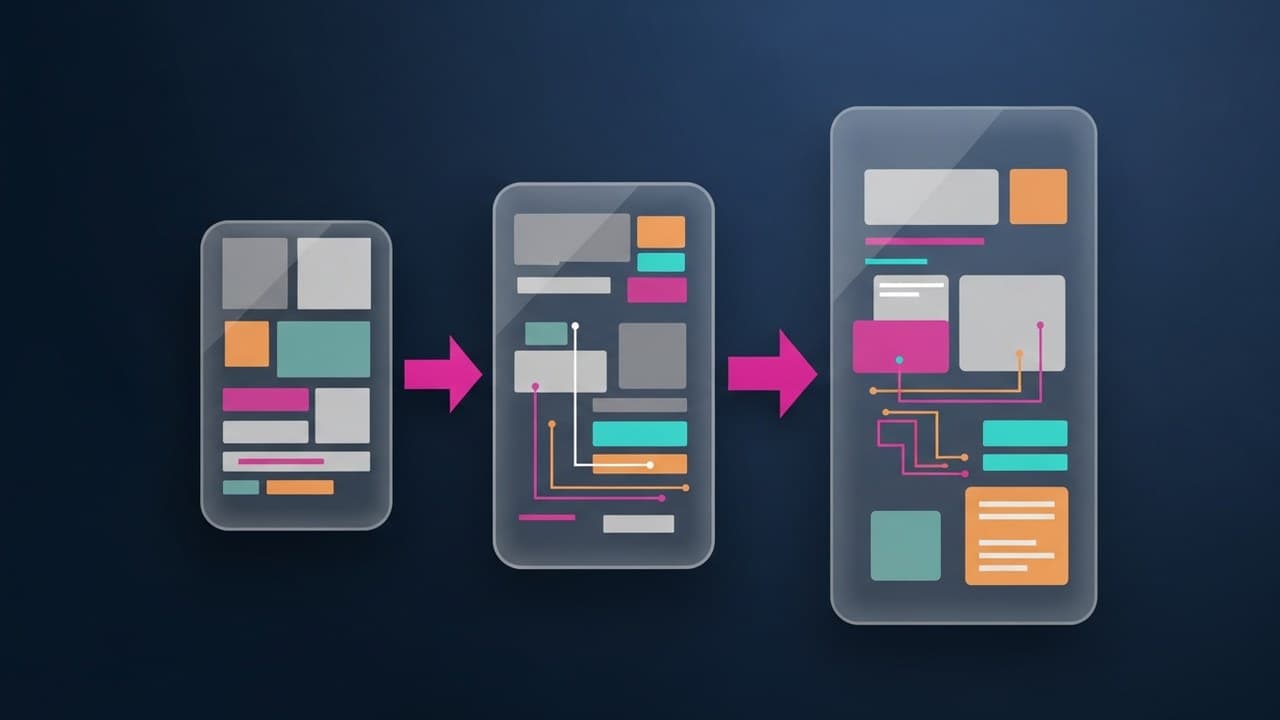
This is the fundamental difference from traditional design. You don't work linearly (design everything, then develop, then find problems). Instead, you work in short cycles: prototype, test, learn, adjust, repeat. Each cycle brings you closer to the right solution while reducing the risk of building the wrong thing.
Wireframe, Mockup, and Prototype: What's the Difference?
Before opening Figma, it's crucial to understand three terms that are often confused. They represent different levels of fidelity, and using the wrong one at the wrong time will waste your time.
A wireframe is the skeleton. No colors, no images, no final fonts—just blocks, positions, and the hierarchy of elements. It's used to think about the structure of a page and its content without aesthetic distractions. It's the fastest level and is perfect for initial explorations. If you want to learn more, we have a dedicated guide on what a wireframe is and how to create one.
A mockup is a dressed-up wireframe. It adds the visual identity: colors, typography, images, component styles. It shows what the product will look like, but it remains static—you can't interact with it. It's used to validate the visual appearance and present the design to stakeholders. We also have a guide on what a mockup is.
A prototype is a mockup that comes to life. It connects screens, defines what happens when you tap a button, and simulates transitions and animations. It's the only one of the three that lets you test a real experience because it mimics the product's behavior.
The rule of thumb: use the lowest fidelity that answers your question. Need to know if the order of steps works? A clickable wireframe is enough. Need to test if people notice the "Add to Cart" button? Then you need an interactive mockup with the right colors. Rapid prototyping also means choosing the minimum level of detail necessary.
How to Do Rapid Prototyping in Figma: Step-by-Step
Figma is the industry standard for prototyping today because it combines design and prototyping in the same file and works directly in the browser. Let's walk through the workflow. If you're new to the tool, you might find our Figma tutorial helpful first.
1. Start with Frames, Not Pages
In Figma, every screen is a frame. Don't draw "freehand" on the canvas. Create a frame for each screen in your flow using real device dimensions (Figma offers presets for iPhone, Android, and desktop). Press F or A to insert a frame and choose the format from the right-hand panel.
Working with frames gives you two advantages: each screen has clear boundaries and can be "hooked" into the prototype's interactions. Think of a frame as a screen the user will see, not just a drawing area.
2. Design the Flow First, Then the Details
A classic mistake is perfecting the details of one screen before knowing if the overall flow holds up. Do the opposite: first, lay out all the screens that make up the user's journey on the canvas, even in a rough state. This gives you a bird's-eye view of the user flow and helps you spot missing or redundant steps immediately.
Only after you've confirmed the sequence makes sense should you dive into the details of individual screens. Rapid prototyping means thinking about the architecture of the journey first, then the polish.
3. Use Components to Move Fast
This is where much of the "rapid" comes from. A component in Figma is a reusable element—a button, a card, a navigation bar—that you create once and use everywhere. Select an element and press Ctrl/Cmd + Alt + K to turn it into a component.
The magic happens with variants: you can group the states of a single element (e.g., a button's default, hover, pressed, and disabled states) into one component and switch between them with a click. When you edit the main component, all its instances update automatically. In a constantly changing prototype, this saves hours: you update a color in one place, not across thirty screens.
For rapid prototyping, components are what make iteration sustainable. Without them, every change becomes a manual, repetitive task across every frame.
4. Switch to Prototype Mode and Connect Your Screens
So far, you've been designing. Now it's time to make it interactive. In the top right, you'll find three tabs: Design, Prototype, and sometimes others depending on your version. Switch to Prototype.
In this mode, a small circular node appears on the edge of any element you select. Drag that node from the "Next" button (for example) to the destination frame. You've just created a connection. Figma will then ask you to define the interaction:
- Trigger: What causes the action (
On tap/On click,On hover,On drag,After delay) - Action: What happens (
Navigate toa frame,Open overlay,Back,Scroll to) - Animation: The transition (Instant, Dissolve, Move in, Push, Slide, Smart Animate)
Connect all your screens in sequence, following the flow you designed. In just a few minutes, you'll have a navigable prototype.
5. Bring Interactions to Life with Smart Animate
Smart Animate is the feature that makes your prototype feel like a real product. When two frames contain elements with the same layer name, Figma automatically animates the transition between their different positions, sizes, and opacities.
In practice: if a button is small and at the bottom of screen A and becomes large and centered on screen B, and the layer is named cta-button in both frames, Smart Animate will create the fluid motion between the two states on its own. It's perfect for simulating expanding menus, growing cards, and sliding tabs.
Two practical tips: keep your layer names consistent across frames (it's what makes the animation work) and don't overdo it. In rapid prototyping, animation serves to communicate behavior, not to show off. Thoughtful microinteractions aid understanding; gratuitous effects just slow down your work.
6. Test Your Prototype in a Browser or on Your Phone
Press the Play button (top right) to open the presentation view and experience the prototype as a user would. For mobile testing, the Figma app on your phone lets you test the prototype directly on the device using real gestures—a detail that significantly changes the perception of a touch interaction.
How to Run Quick User Tests
A prototype that stays on your computer is worthless; its purpose is to be put in front of real people. The good news is you don't need a lab or dozens of participants. Classic research by Jakob Nielsen shows that just 5 users will uncover the vast majority of major usability problems. For a quick test, five people are plenty.
Here's a lean method that pairs well with rapid prototyping:
- Define a task, not a question. Don't ask, "Do you like it?" Instead, assign a concrete goal: "Try to buy two tickets for Saturday." This way, you observe what people do, not what they say they think.
- Share the prototype link (Figma generates a URL with one click) or hand them your phone. Give no instructions on how to use it; they should figure it out just as they would at home.
- Stay quiet and observe. Where do they hesitate? Where do they misclick? Where do they get stuck? These moments of confusion are worth more than a thousand opinions.
- Ask them to think aloud. "Tell me what you're trying to do" makes their thought process visible.
- Take notes and iterate. Collect the issues, fix the prototype (which is fast, thanks to components), and repeat with other people.
This is the core of usability testing applied in a lightweight way. The point isn't methodological perfection but the speed at which you move from observation to correction. A prototype tested on just three colleagues is more valuable than a perfect one that's never been tested.
Common Mistakes to Avoid
Even with a powerful tool like Figma, it's easy to make rapid prototyping useless. Here are the most common traps.
Chasing perfection. The prototype is not the final product. If you spend hours tweaking shadows and micro-spacing before you've tested the flow, you've betrayed the "rapid" part of the process. Substance first, style later.
Prototyping too much. You don't need to make every single feature interactive. Focus on the one flow you want to test and leave the rest static or sketched out. A prototype that tries to do everything does nothing well.
Skipping components. Designing every screen from scratch might seem faster at first, but it becomes a nightmare at the first revision. Invest five minutes in components; they'll pay you back tenfold.
Messy layer names. Rectangle 47, Group 12, Frame 9... besides being confusing, this prevents Smart Animate from working. Clean, consistent naming is part of the job.
Only testing on yourself. You already know the flow, so it "always works" for you. The prototype is for people who know nothing about it. Get it in front of someone else as soon as possible.
Confusing beautiful with usable. A spectacular animation won't save a poorly designed flow. Rapid prototyping measures whether people can get things done, not whether they are impressed.
In Summary
Rapid prototyping is the most effective way to test a design idea before investing time and budget in development. It relies on short cycles—prototype, test, learn, modify—and the principle of using the lowest fidelity needed to answer the question at hand, choosing between a wireframe, mockup, or interactive prototype.
In Figma, the workflow is straightforward: start with frames, design the flow before the details, leverage components to iterate quickly, connect screens in Prototype mode, and use Smart Animate to simulate realistic interactions. Then, put the prototype in front of five users, observe, fix, and repeat.
It's one of the most in-demand skills for a UX/UI designer because it combines design thinking with tool mastery. If you want to learn Figma in-depth—from components and advanced interactions to test-ready prototypes—that's exactly what we teach you step-by-step in our Figma course. We start with the basics and build up to creating prototypes that work in front of real users.
Frequently Asked Questions
What's the difference between a wireframe, mockup, and prototype? They are three levels of increasing fidelity. A wireframe is the structural skeleton, with no styling. A mockup adds the visual identity (colors, fonts, images) but remains static. A prototype connects the screens and makes them interactive, allowing you to test a real user experience. In rapid prototyping, you always choose the minimum level needed to answer your current question.
Do I need to know how to code to prototype in Figma? No. Figma allows you to create fully interactive prototypes—with navigation, transitions, and animations—without writing a single line of code. You define triggers, actions, and animations with a few clicks in Prototype mode. This is precisely what makes rapid prototyping accessible to designers who don't have a development background.
How many people do I need to test a prototype? For a quick test, about five users are enough. According to Nielsen's research, this number is sufficient to identify most of the major usability issues. It's better to run multiple short testing cycles with a few people, fixing the prototype between sessions, than to conduct one large test with many participants.