The signup and login flow is the first friction point users hit in any digital product. It's also, statistically, the spot where abandonment is highest: the Baymard Institute has measured that up to 25% of US and UK e-commerce users drop out right here. Every second spent, every extra field, every unclear error message translates into lost conversions.
In 2026 the landscape has shifted even from a few years ago: passkeys have started replacing passwords, SSO is everywhere, and biometrics are the default on mobile. This article updates the 15 guidelines for designing a modern login experience, focused on what really reduces friction.
What you'll learn:
- The 5 guidelines for the signup phase
- The 5 for handling passwords (and when to remove them entirely)
- The 5 for recurring login
- How to integrate passkeys, SSO and biometrics
- Common mistakes that cost conversions
Part 1: How to improve signup
1. State the concrete benefit of signing up
Before asking a user to sign up, tell them what they get in return. Not "Create an account" but "Create an account to save your orders and get personalized offers." Signing up has a cognitive and time cost: you have to compensate it with explicit value.
2. Offer alternative signup methods
Email-and-password only is the slowest, most abandoned option. Always offer:
- SSO with Google, Apple, Microsoft (the big three)
- Passkeys, if your infrastructure supports them (see below)
- Magic link via email as a simple fallback
- SMS OTP where it's culturally expected
The best implementations expose all methods in parallel and let the user pick.
3. Ask for the bare minimum
Every extra signup field lowers completion. Non-critical info (full name, phone, preferences) can be collected after signup, through progressive onboarding. The principle: the first form has to be as short as possible.
An optimal signup form has 2–3 fields: email + password (or just email with a magic link). Everything else can wait.
4. Don't duplicate fields (no "confirm password")
Asking users to type their password twice was a 2005 workaround to compensate for the lack of a "show password" button. Today, with a show-password toggle, users can easily verify what they typed, and the confirmation field is useless bloat that doubles the time to complete.
5. Skip email confirmation when possible
Forcing users to "confirm their email" before using the product inserts a step between them and the value. For many products it's better to let users in immediately and only require email verification for specific actions (password reset, security changes). Mandatory confirmation is only justified when identity verification is essential to the service, like financial apps regulated by the US OCC or UK FCA.
Part 2: How to design the password experience (and when to kill it)
6. Support passkeys (or get ready to)
Passkeys are the W3C WebAuthn standard that, by 2024, is supported by Apple, Google, Microsoft and most modern browsers. They enable passwordless login using device biometrics (Face ID, Touch ID, Windows Hello) plus a cryptographic key. The user types nothing — they just authorize on their device.
In 2026, many top-tier US and UK products already ship passkeys as the primary method. If you don't have them yet, plan the roadmap: they're becoming the default. Read the FIDO Alliance passkey implementation guide to understand the framework.
7. Show/hide password as standard
A "show password" toggle (eye icon) is now standard and is no longer considered a security risk in any modern context — if anything, it dramatically reduces typos, especially on mobile with imprecise keyboards.
8. Real-time strength meter
While the user types their password, show a visual indicator of strength (weak/medium/strong). Don't block completion for "weak" passwords if they technically meet minimum requirements — guide, don't force.
9. Clear, upfront constraints
Show password requirements before the user tries (not after the first error): "At least 8 characters, with at least one number and one uppercase letter." Each requirement becomes a green check in real time as the user meets it. This pattern slashes frustration.
10. Don't enforce absurd rules
Over-rigid rules ("must include a special symbol + a digit + uppercase + lowercase + length >12") don't produce more secure passwords: they produce passwords written on sticky notes or saved in Excel. Modern guidance in NIST SP 800-63B recommends a minimum length of 8–12 characters and nothing else, with a check against breached-password lists.
Part 3: How to improve recurring login
11. SSO first
Login with Google, Apple, Microsoft or LinkedIn at the top of the form is a guaranteed conversion boost for anyone not specifically opposed to those providers. SSO buttons drop friction to almost zero.
On mobile, Apple SSO is often mandatory if you offer other SSO providers (App Store requirement since 2020).
12. Biometrics as the mobile default
After the first login, persist the session or enable biometrics (Face ID, Touch ID, Android fingerprint) for subsequent logins. A second login shouldn't require retyping a password — it should be one tap.
13. Show/hide password in login too
Same rule as signup: the eye icon is standard. There's no reason to leave it out.
14. Fast, frictionless password recovery
The "forgot password" link has to:
- Be visible next to the password field (not hidden in small print)
- Immediately send an email with a reset link (not a paid SMS, not a mail with codes to copy)
- Not invalidate the current session if the user is logged in elsewhere
15. Passwordless login
If you don't yet support passkeys, offer traditional passwordless login: the user enters just an email, receives a magic link, clicks it and is in. It's one of the flows users like most (less to remember) and it reduces support load for forgotten passwords.
Magic links must be used carefully in security-critical contexts (banking, healthcare), where they should be paired with a second factor.
Common mistakes that kill conversions
1. Forms that are too long
Signing up with 10 fields is a reliable way to lose 60% of users. Every field needs to be justified by an immediate service need.
2. Aggressive CAPTCHAs
CAPTCHAs are sometimes necessary, but they should be invisible or minimally invasive (reCAPTCHA v3, hCaptcha invisible, Cloudflare Turnstile). The "select all images with traffic lights" CAPTCHAs are modern torture and burn conversions.
3. Missing feedback
The user clicks "Login" and nothing visible happens for 3 seconds. They assume the system is broken and click again. Always show an immediate loading state on click.
4. Generic error messages
"Wrong email or password" is vague. Where possible, be specific (with security in mind): if an email isn't in the system, you can often say so explicitly because it's not sensitive information for most products.
5. Hidden password rules
Finding out a password "must contain a number" only after submitting is frustrating. Show the requirements in real time.
6. Hard-to-find logout
It sounds counterintuitive, but a logout that's easy to find increases user trust. If people don't trust that they can leave, they won't come in.
Login accessibility
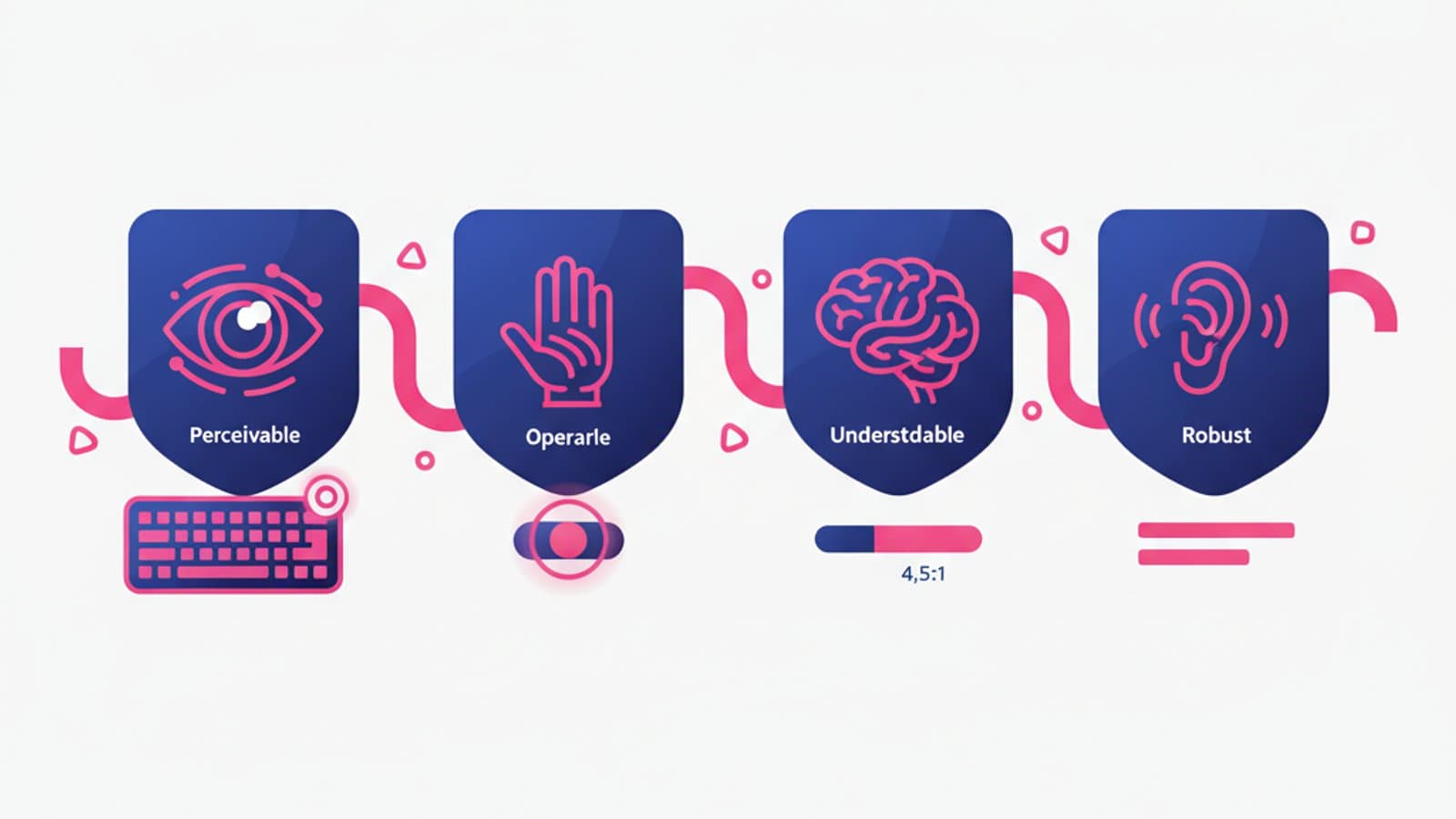
Four minimum accessibility requirements every login flow should meet to stay aligned with WCAG 2.2, the ADA, Section 508, and the UK Equality Act 2010:
- Keyboard-navigable forms: every field reachable with Tab, buttons activatable with Enter or Space.
- Explicit labels (not just placeholders): screen readers read labels, not placeholders that disappear on focus.
- WCAG AA contrast: text and field borders with at least 4.5:1 contrast.
- Errors tied to fields:
aria-describedbyto link each error to the corresponding field.
Read the WCAG 2.2 quick reference for full details.
Frequently asked questions
Will passkeys really replace passwords?
Yes, slowly but inevitably. The big players (Apple, Google, Microsoft) have aligned support and top-tier products have been adopting them as the default since 2024. Passwords won't disappear overnight, but in the next few years they'll become the exception.
Does SSO hurt conversion?
On the contrary — it almost always lifts it. The exception is audiences that distrust big providers (some privacy-sensitive enterprise targets in the EU). Otherwise, SSO buttons at the top of the form are one of the most reliable conversion boosts.
Should I force email confirmation?
Only when it's essential to the service (financial transactions, healthcare, verified identity). For generic consumer products, let users in immediately and only verify their email for later critical actions.
How many fields can a signup form have?
Ideally 2–3 (email + password, or email only for passwordless). 5 max. Beyond that, split the information across multiple steps (progressive onboarding) instead of one long form.
Is it OK to show "wrong password" vs. "email not found" separately?
It depends on context. For generic consumer products, yes — it improves usability. For banking services or anywhere account privacy is critical, use a generic message so you don't reveal which emails are registered.
How do I handle login on mobile?
Priorities: biometrics as the default after the first login, the right keyboard (email type for email fields), autofill support for password managers, and a "Go" key on the keyboard wired to the form submit.
Next steps
The login flow is one of the most testable, high-ROI points in any product. To keep going:
- Dig into call-to-action design to build effective login buttons
- Study the usability principles that apply to every form
- Read the guide to UX analysis to evaluate your current flow
The Interaction Design course at CorsoUX drills authentication-flow design with real examples and mentor feedback, including passkey, SSO and biometric scenarios used by US and UK product teams.