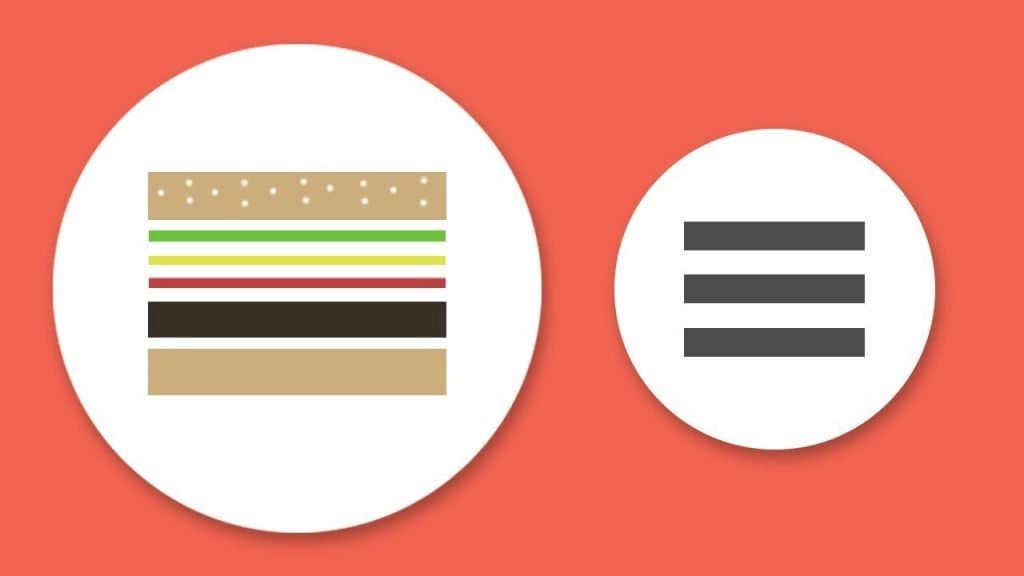
The hamburger menu — those three horizontal lines in the top-left corner that open a side drawer — is one of the most widespread mobile interface patterns and, paradoxically, one of the most criticized in UX research. Studies from Nielsen Norman Group, Luke Wroblewski, and the Baymard Institute all agree on one thing: features hidden inside a hamburger get discovered and used far less than features in plain sight. And yet we see it everywhere, from Gmail to Slack to big-bank apps from Chase, Barclays, and Monzo.
How can a pattern so criticized be so widespread? Because it's often the only practical way to fit many navigation items into the tight space of a mobile screen. This article helps you decide when to use a hamburger, when a better alternative exists, and how to get the most out of it if you choose it anyway.
What you'll learn:
- What UX research actually says about the hamburger menu
- The 3 contexts where it's still the right call
- The 4 modern alternatives (tab bar, bottom sheet, hub page, segmented control)
- How to design an effective hamburger menu if you decide to use one
- The most common mistakes that make it unusable
What UX research says
The key finding is this: content hidden inside a hamburger menu gets discovered less than content in plain sight. A Nielsen Norman Group study first published in 2016 and updated since showed that when the same items are available in visible navigation, their usage rate is significantly higher — often double or more. Baymard Institute's mobile e-commerce benchmarks report the same directional finding year after year.
It's not a methodological novelty. It's consistent with Don Norman's principle of discoverability: what isn't visible doesn't exist for a user who doesn't already know to look for it. The hamburger is a "closed box": novices don't know what's inside and many never open it.
That doesn't mean it's always wrong. It means it has to be used with eyes open, accepting the trade-off: you swap discoverability for visual cleanliness. In some contexts the swap makes sense. In others, it doesn't.
When the hamburger menu is still the right call
Three situations where it's still reasonable:
1. When you have many secondary navigation items
If your app has 20+ sections, of which only 4–5 are primary (the core of the product) and the rest are secondary or service-oriented (settings, profile, help, legal), the hamburger is an acceptable container for those secondary items. The primary ones still need to be exposed some other way.
2. When your users are recurring and expert
If your app is a professional tool used every day by the same person for months, the lack of early discoverability matters less: users learn the structure in a few sessions. Slack, Notion, Linear, Jira — tools where a hamburger (or a variant) is still alive.
3. When you have limited surface and many product areas
Apps from large institutions (US and UK banks, insurers, government services) have dozens of legitimate functional areas. A 5-slot tab bar isn't enough. In that context, a well-organized hamburger is the least-bad option — which is why you still see it across Chase, Bank of America, HMRC, and the NHS app.
The 4 modern alternatives to the hamburger
In 2026 a designer has several alternatives, each with its own sweet spot.
1. Tab bar (bottom navigation)
A fixed bar at the bottom with 3–5 primary sections. It's been the dominant pattern for native iOS and Android apps since 2018, and it's the standard in Material Design 3 and Apple's Human Interface Guidelines.
Pros:
- Maximum discoverability: every primary section is always visible.
- Thumb-friendly on today's tall screens.
- Consistent with the rest of the mobile ecosystem: users already have the mental model.
Limits:
- 5 slots max. With 6+ primary sections, you run out of room.
- Takes permanent vertical space.
When to pick it: apps with 3–5 clearly primary areas (Instagram: Home, Search, Reels, Shop, Profile). It's the 2026 default.
2. Bottom sheet
A surface that slides up from the bottom, covering part of the screen. Used for contextual actions (share, edit, filter) and sometimes for secondary navigation.
Pros:
- Integrates with the current context without a page change.
- Faster than navigating to a new screen.
- Takes space only when summoned.
When to pick it: contextual navigation, not primary. Example: Instagram's "+" button opens a bottom sheet with "Post / Story / Reel / Live".
3. Hub page
A "home" screen that acts as an index of product areas, visible on first launch. The app opens directly onto this screen and the user picks where to go next.
Pros:
- Every area is visible.
- Works as implicit onboarding.
- Flexible for content with very different structures.
Limits:
- One extra tap compared to a tab bar.
- Requires strong visual design so it doesn't become a cluttered list.
When to pick it: complex service apps with many areas (banks, insurers, government portals, super-apps like the NHS app or Revolut's card hub).
4. Segmented control
A button control that splits the main screen into 2–4 sections, typically at the top. Different from a tab bar because it switches the content of the same screen, not the context of the whole app.
Pros:
- Fast switching without page changes.
- Good for filtering between views of the same information (e.g. "All / Unread / Starred").
When to pick it: not for global navigation, but for sub-areas of a single function.
How to design an effective hamburger menu
If after evaluation the hamburger is the right choice for your case, follow these rules to make it as usable as possible.
1. Always show a label next to the icon
"Menu" written next to the three lines measurably increases discoverability. The three lines are a learned icon, but "Menu" is universal language.
2. Order items by usage priority
Most-used items at the top. Not alphabetical, not "logical from the creator's point of view": real usage stats. If you don't have data, prioritize based on user interviews.
3. Separate personal actions from product areas
Settings, profile, logout belong in a separate section (the bottom is the classic spot) from your product areas. This separation reduces cognitive load.
4. Show the active state
When the menu is open, the current area must be highlighted. Users shouldn't have to remember where they are.
5. Limit depth
A hamburger with sub-menus opening into sub-sub-menus is a maze. Two levels max, and the second only for very strong reasons.
6. Consider an icon for each item
Icons next to area names speed up visual scanning by 20–30% in classic usability studies. Not mandatory, but a boost when applied consistently.
The most common mistakes
Five mistakes that make a hamburger intolerable:
1. Using it to hide primary features
If the 3–4 most-used features of your app live inside the hamburger, you're getting it wrong. They need to be visible at all times.
2. Mixing items of different levels
"Home / Orders / Settings / My profile / Log out / Contact us / Terms of service / Language" in one flat list is a cognitive mess. Group by level and type.
3. Icons only, no labels
An icon-only menu is unreadable to anyone who doesn't instantly recognize every glyph. Always label.
4. Opening animation too slow
The hamburger should open in 200–300ms. Past 500ms it becomes annoying after the tenth tap.
5. Background not tappable to close
The menu must close when the user taps outside it. Mandatory.
The future of the hamburger
In 2026 the hamburger menu is less dominant than it was five years ago on native mobile, but it lives on in mobile web and PWAs (where space is even more constrained) and in enterprise products with dozens of functional areas. It isn't dead — it's been resized to its proper role: a container for secondary navigation, not primary.
The general trend is toward more visible navigation: expanded tab bars, well-designed hub pages, contextual bottom sheets. The hamburger survives where it's the only practical solution, not where it's the first choice.
Frequently asked questions
Is the hamburger menu dead?
No, but it's been resized. It was often the first choice for mobile in 2013–2017; today it's often the third or fourth choice, used when the alternatives aren't practical. It still exists, just in a more specific role.
Can I use both a hamburger and a tab bar together?
Yes, many apps do. The tab bar holds the 4–5 primary areas; the hamburger (or an "More" button) holds the secondary ones. It's a compromise used by plenty of super-apps.
Why do Google and Apple still use it?
Some of their enterprise-tier apps (Google Workspace, Apple Business Manager) use it because they have dozens of functional areas. Their newer consumer apps (Google Maps, Apple Photos) have moved to bottom sheets and hub pages instead.
Is the hamburger menu less accessible?
Not intrinsically, but it's easier to get wrong. A hamburger must be keyboard-operable, a screen reader must announce "menu, button, collapsed/expanded", and its animation must respect prefers-reduced-motion. These requirements matter under WCAG 2.2, the ADA, and Section 508 in the US, and the Equality Act 2010 in the UK — and they're often ignored in practice.
What's the difference between a hamburger and a kebab menu?
The kebab menu (three vertical dots) is for contextual actions on a single item. The hamburger menu (three horizontal lines) is for global navigation. They aren't interchangeable, even if they look similar.
Next steps
Choosing a navigation pattern is one of the most consequential decisions for a mobile product's success. To dig deeper:
- Study the usability principles that govern these choices
- Read the guide to mobile first design for the broader mobile design context
- Deepen your grasp of the information architecture behind every navigation system
The Interaction Design course at CorsoUX dedicates an entire section to navigation-pattern selection, with hands-on exercises on real mobile products and feedback from mentors who design apps for US and UK companies every day.