"Typography is 95% of design," goes a line often attributed to Oliver Reichenstein. It's only partly an exaggeration: in a digital interface, text is the dominant element both by screen real estate and by informational weight. Picking fonts well and setting a coherent type scale is probably the single most impactful visual decision a designer makes — and one of the most commonly botched.
This article covers the fundamental types of typefaces, how to classify them, how to choose them for a digital product in 2026, the variable fonts story that's changing the game, and the modern system fonts that deliver excellent performance.
What you'll learn:
- Font classification by family (serif, sans-serif, monospace, display)
- How to pick fonts for digital readability
- Variable fonts and why they're reshaping the web
- Modern system fonts and when to use them
- How to build a type scale for UI
- Typographic accessibility rules
The 5 main font families
Serif
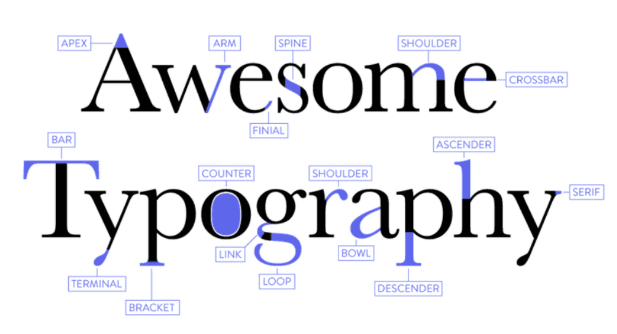
Serifs are typefaces with small finishing strokes at the ends of their letters. Classics: Times New Roman, Georgia, Garamond, Playfair. They communicate tradition, formality, authority — the language of newspapers, literature, law.
On the web and in UI, serifs work well for:
- Online editorial (Medium uses a serif for articles)
- Brands that want to communicate heritage (banks, institutions, luxury — think The New York Times, Burberry, Morgan Stanley)
- Long-form content meant for comfortable reading
They used to be discouraged for body text on screens because of rendering limits, but modern high-DPI displays have made that concern obsolete.
Sans-serif
Sans-serifs are typefaces without serifs. Digital classics: Helvetica, Arial, Roboto, Inter, SF Pro, Poppins. They communicate modernity, cleanliness, neutrality — the language of Silicon Valley, minimalism, and the majority of digital products in 2026.
On the web and in UI, sans-serifs are the dominant pick for:
- Body text in apps and sites
- Headings in modern tech products
- Dashboards and professional tools
- Any situation where readability is the priority
The most-used font in international tech products over the last few years is Inter, built by Rasmus Andersson specifically for UI. Google uses Roboto (Android) and Google Sans, Apple uses SF Pro (iOS/macOS), Microsoft has Segoe UI, and Stripe, Linear, and GitHub all default to Inter.
Monospace
Monospaced fonts give every letter the same horizontal space. Classics: Courier, Consolas, Fira Code, JetBrains Mono, Source Code Pro.
On the web and in UI they're used for:
- Source code (the original purpose)
- Tabular numeric data (perfect digit alignment)
- Passwords and credential inputs (every character has to be clearly distinguishable)
- Tech or "geek-retro" stylistic effects in certain brands
Display / Decorative
Display fonts are designed for headlines and visual impact, not body text. Often very characterful: Abril Fatface, Lobster, Oswald, Bungee. Expressive but tiring to read at length.
Use them for:
- Large headings and hero sections
- Logotypes and visual identity
- Posters and high-impact communications
- Brands with a strong personality
Never use them for the body text of an interface: readability breaks down below 20–24pt.
Handwritten / Script
Script fonts imitate handwriting. Classics: Pacifico, Caveat, Sacramento, Brush Script. They communicate informality, art, personality.
On the web and in UI:
- Use them sparingly (only as decorative accents, never for body)
- Check readability at small sizes
- Don't mix them with other decorative fonts in the same project
How to choose fonts for digital readability
On-screen readability depends on several factors, not just the family.
Stroke contrast
Fonts with uniform stroke contrast (modern sans-serifs, many serifs like Georgia) are more readable at small sizes than fonts with high contrast between thin and thick strokes (classic serifs like Bodoni). For body text under 16px, pick fonts with uniform contrast.
x-height
The height of lowercase letters relative to uppercase. A tall x-height improves readability at small sizes. Inter, Roboto, and SF Pro have generous x-heights; Garamond much less so.
Distinction between similar characters
Letters like I, l, 1, 0, O need to be visually distinct. Well-designed fonts like Inter and JetBrains Mono handle this properly; poorly designed ones create ambiguity, especially in input forms.
Screen rendering
Modern fonts are designed and tested for rendering on today's screens. Older fonts (designed for print) often render poorly. Always check your font on real devices, not just in your design tool.
Variable fonts: the post-2020 revolution
Variable fonts are a technology (supported by every modern browser) that lets you carry every weight, width, and style variation of a typeface in a single file. Instead of loading 8 separate files (regular, medium, bold, extra-bold, each in italic), you load one variable font and interpolate between values dynamically.
Pros:
- Performance: one file instead of eight, much smaller overall payload
- Flexibility: any weight between 100 and 900, not just the preset stops
- Animation: you can animate weight, width, and slant in real time
- Richer design systems: custom intermediate weights that didn't exist before
Notable free variable fonts in 2026:
- Inter — the most used in digital UI
- Roboto Flex — the variable version of Roboto
- Recursive — one of the most flexible, with a sans/mono axis
- Fraunces — an expressive variable serif
- Figtree, Geist, Outfit — popular modern alternatives
System fonts: performance with no compromise
System fonts are the fonts already installed on the user's device. Using them means zero loading time and perfect alignment with the OS style.
The modern web's system font stack:
font-family: -apple-system, BlinkMacSystemFont, "Segoe UI", Roboto,
             "Helvetica Neue", Arial, sans-serif;
This sequence tells the browser: "use SF Pro on Mac/iOS, Segoe UI on Windows, Roboto on Android, Helvetica Neue as fallback...". The result is a site that uses the device's native font — maximum performance, "native" aesthetics.
When to use system fonts:
- Products where performance is critical (e-commerce, high-traffic landing pages)
- Products that want to blend visually with the OS (native-like apps)
- Brands without a strong typographic identity to communicate
When NOT to use them:
- When brand identity requires a specific font
- When you need cross-platform visual consistency (your product must look the same on iOS, Android, web)
How to build a type scale for UI
A well-designed type scale has 6–10 preset sizes covering every use in the product. A classic modular scale (ratio 1.25, "Major Third"):
- Caption: 12px
- Small: 14px
- Body: 16px (base)
- Body Large: 18px
- Heading 4: 20px
- Heading 3: 24px
- Heading 2: 30px
- Heading 1: 38px
- Display: 48px
- Display Large: 64px
16px as the base: it's the browser default, widely considered the minimum for comfortable body-text readability on digital screens. Going below 14px on desktop or 15–16px on mobile for body text is discouraged.
For each size, define:
- Line-height: 1.4–1.6 for body, 1.1–1.3 for large headings
- Typical weight: regular for body, medium/semibold for emphasis, bold for headings
- Spacing: slightly negative letter-spacing on large headings, neutral for body
Tools for generating type scales: typescale.com, type-scale.com, modularscale.com.
Typographic accessibility rules
Minimum rules for accessible typography in 2026:
- Minimum body size: 16px on mobile; 14–15px acceptable only for ancillary elements like captions
- Text/background contrast: at least 4.5:1 (WCAG 2.2 AA) for body, 3:1 for large text (24px+)
- Line-height: never below 1.4 for long body text
- Line length: 45–75 characters per line for comfortable reading (too long is tiring)
- Resize support: fonts must scale when the user bumps up text size in the browser (use
rem, not fixedpx) - Dyslexia-friendly fonts: for products targeting dyslexic audiences, consider OpenDyslexic or Lexend (designed specifically for this)
These rules aren't just best practice — they're the baseline for compliance with WCAG 2.2, the ADA, and Section 508 in the US, and the Equality Act 2010 in the UK. Read the WCAG 2.2 reference for the full technical spec.
Mixing and pairing fonts
Rules of thumb when you combine multiple fonts:
- Two fonts max for most projects
- One for headings, one for body is the classic pairing
- Never two fonts from the same stylistic family (two similar serifs, two similar sans-serifs) — they create confusion
- Pairings that work: Display serif + Sans body (e.g. Playfair + Inter); modern sans + monospace for code
Frequently asked questions
How much does a professional font cost?
High-quality free fonts (the entire Google Fonts catalog, Inter, Figtree, etc.) cover 95% of projects. Paid fonts from foundries (Commercial Type, Grilli Type, Dinamo, FontShop) range from $50 to several thousand dollars depending on the license, and are only justified for brands with a strong typographic identity.
Can I use Google Fonts for commercial projects?
Yes. Every font in the Google Fonts catalog is open source under the SIL Open Font License, usable in commercial projects at no cost and with no mandatory attribution.
Which font is best for UI?
It depends on brand and context. For modern tech apps, Inter is probably the most used font in the world in 2026. For warmer products, Figtree, Geist, or Outfit are solid alternatives. For editorial serif products, Fraunces or Playfair Display work well.
Are variable fonts supported everywhere?
Yes — every modern browser (Chrome, Firefox, Safari, Edge) has supported variable fonts since 2018–2020. There's no longer a technical reason to avoid them in 2026.
How many font families can I use in one project?
Ideally two max. Three starts risking visual incoherence; beyond three is almost always a mistake. The exceptions are editorial projects or brand experiments where typographic variety is part of the identity.
Is px or rem better for font sizes?
Use rem: it scales automatically with the user's browser preference (anyone who set their browser for larger text will see it). Fixed px breaks accessible resizing.
Next steps
Typography is a deep subject that takes years of study and practice. To keep going:
- Dig into the complete UI Design guide
- Study the Gestalt principles that drive visual hierarchy
- Read the guide to color accessibility to combine contrast and readability
In CorsoUX's Visual Design course we dedicate a full section to typography with hands-on exercises and mentor feedback, including projects where you build full type scales from scratch.