A junior designer ships a screen: the "perfect" version, with ideal content, a logged-in user, everything loaded. Then the engineer implements it and finds out — two days later — that the design only covers 5% of real scenarios. Everything else is missing: no data, an error, a spinner that never ends, an offline user, an action that silently succeeds.
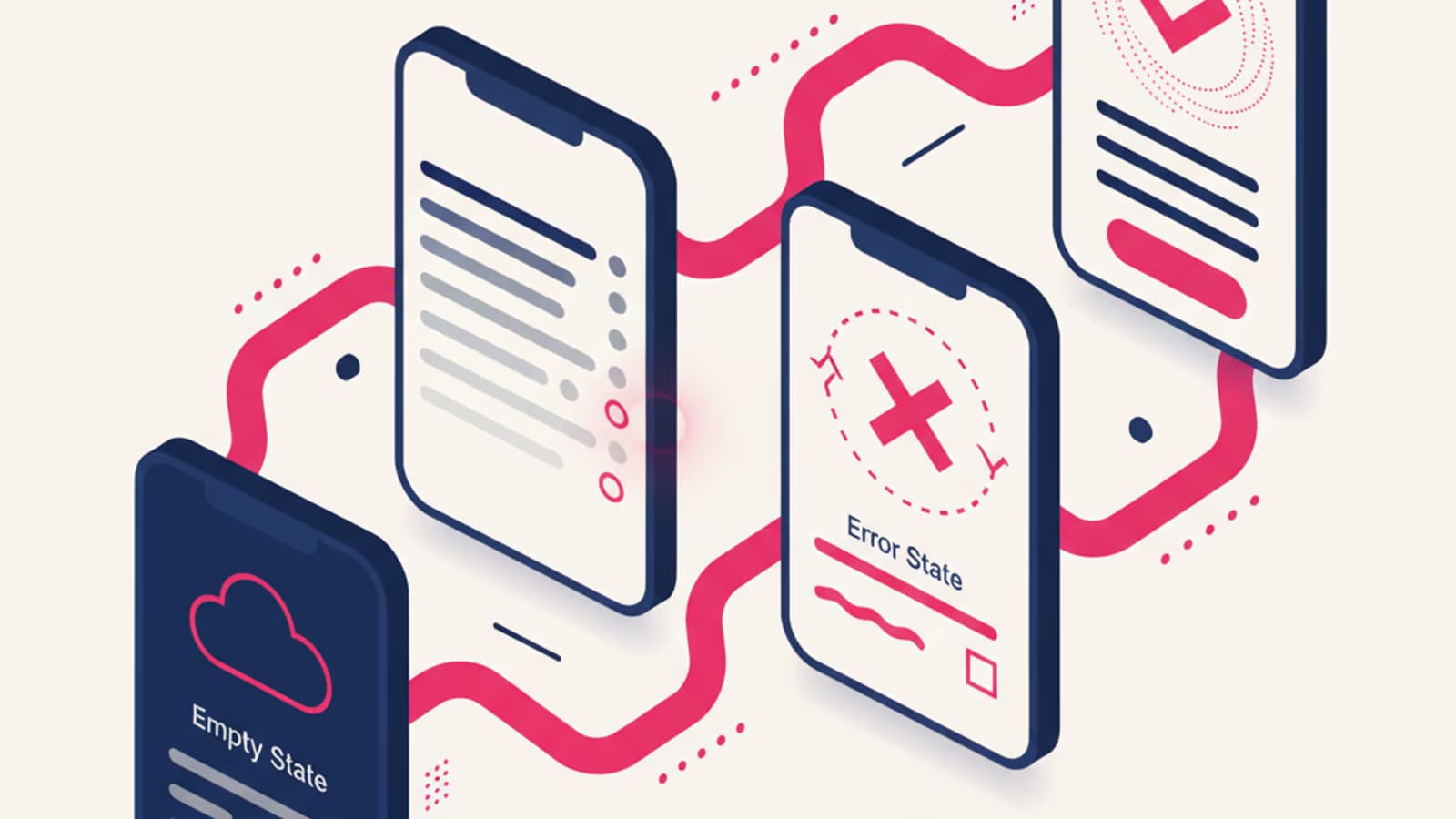
Design states are the disciplined answer to this problem. Instead of designing one screen, you design every possible configuration of that screen, each with its own visual treatment and message. This article covers the 5 classic states codified by Scott Hurff in Designing Products People Love (O'Reilly), and the 2 states almost everyone forgets but have become essential in 2026.
What you'll learn:
- What design states are and why they matter
- The 5 classic states: ideal, empty, error, partial, loading
- The 2 forgotten states: success/celebrative and offline
- How to design each state with real examples
- How to bake them into your design workflow
What design states are
Every screen in a digital product exists in multiple possible states depending on user context and available data. An orders list has a state for "no orders", one for "orders present", one for "loading", one for "network error", one for "filter returned no results". They're all "the same screen" but visually and functionally different.
The "complete" design of a screen is the sum of all of its states. Skipping one leaves a hole in the product — a scenario that, when it actually happens, produces a broken experience (white screen, cryptic error, infinite spinner).
Scott Hurff codified the 5 core states in 2015 as the foundation of robust design. They've since become a standard part of the modern UX vocabulary — and any serious design system at companies like Shopify, Atlassian, or GitHub explicitly documents each one.
1. Ideal State
The ideal state is the one every designer loves: rich content, logged-in user, everything loaded, no errors. It's the picture-perfect screen you put in mockups for the client.
Characteristics:
- All data available
- Visually optimal layout
- Content in both ideal quantity and quality
Real-world example: the X (Twitter) timeline when you follow 100 active accounts — there are always new posts, images, interactions. The screen "lives" and shows the product at its best.
Common mistake: designing only this state. 70% of real users are never in the ideal state — they're new, they have little data, they're still exploring. The design has to work for them too.
2. Empty State
The empty state is the screen when there's no data to show. It's the new user who just installed the app, the power user who deleted everything, the filter that returned no results.
The empty state is the most underrated of the five because, in consumer products, it's the first impression for most users. A good empty state:
- Explains what's missing ("You don't have any orders yet")
- Offers a concrete next action ("Browse the catalog →")
- Illustrates the concept visually with an icon or illustration
- Educates if the product is new to the user, showing what to expect
Real-world example: when you first open Notion, the empty state shows you a pre-filled template as an example. Instead of a terrifying blank page, you immediately see what you can build.
Cases to handle separately:
- New user (never had data): educational tone, invitation to onboarding
- Power user (deleted everything): neutral tone, not condescending
- Filter/search with no results: suggest removing filters or editing the query
- Error vs. legitimate empty: the two must be clearly distinguishable
3. Error State
The error state kicks in when something goes wrong: server down, invalid form, resource not found, action failed. It's the most critical UX moment because the user feels let down.
A well-designed error state:
- Says what happened in human language, not technical jargon
- Explains why it happened (when useful)
- Offers a way out (retry, contact support, go back)
- Doesn't blame the user for system errors
Bad example: "Error 500: Internal Server Error"
Good example: "Something went wrong on our end. Our servers are having a moment — we're on it. Please try again in a few minutes."
For form errors:
- Field-specific errors, not generic page-level ones
- A message that says exactly what to fix
- Visible next to the field, not stacked at the top
- Red color + icon + text, not color alone (WCAG 2.2 accessibility — the ADA and Section 508 both require that information never rely on color alone)
Read the UX login guide for specific authentication form examples.
4. Partial State
The partial state is when some data is present and some isn't. It's the user profile with a name but no photo, the half-filled form, the app with some content but missing the rest.
It's the most frequent state in day-to-day reality — far more common than the ideal state — and yet the one designers intentionally plan for the least.
How to design it well:
- Signal what's missing with visual cues ("incomplete profile" badge, progress bar)
- Prompt completion with inline actions ("Add a profile photo →")
- Don't break the layout: the screen must still work with gaps
- Meaningful placeholders for missing parts (not just gray voids)
Real-world example: LinkedIn shows a "Profile 65% complete" progress bar when sections are missing, with contextual suggestions to complete them. It turns a partial state into a motivation to act.
5. Loading State
The loading state covers the time between a user action and the visible result. It's one of the most critical elements in how fast a product feels.
Principles of a good loading state:
- Immediate feedback: within 100ms of a click something has to appear (even just a button state change)
- Progress indication when possible (1/5, 2/5, 3/5…)
- Skeleton screens instead of spinners for layout loads (they reduce perceived wait)
- Thresholds: past 3–4 seconds, communicate actively (instead of just a spinner)
- Fallback after 10+ seconds: something went wrong, switch to the error state
Skeleton screen vs. spinner:
A spinner suits short, specific actions ("sending message…"). A skeleton screen — a gray version of the page with the outline of elements still loading — is much better for complex layout loads because it gives you a sense of structure right away. Facebook, LinkedIn, and YouTube use skeleton screens everywhere.
To dig deeper into loading animations read the UI animations guide.
Forgotten state #1: Success / Celebrative State
Beyond the 5 classics, there's a state almost nobody intentionally designs: the success state, the moment a meaningful action has just succeeded.
Not every "success" needs celebration — a sent message doesn't deserve an animation every time. But meaningful actions (checkout complete, goal reached, course finished, achievement unlocked) are moments where the product should acknowledge the user's win.
How to design a celebrative success state:
- Strong, distinctive visuals: animation, confetti, graphic, saturated brand color
- Explicit confirmation: "Order confirmed", "Payment successful", "Profile 100% complete"
- Suggested next step: "View order", "Share result", "Start next course"
- Brevity: 2–3 seconds, not 15. The celebration mustn't block the flow
Real-world example: Duolingo plays a short celebrative animation after finishing a lesson, showing XP and streak progress. It reinforces the behavior without slowing things down.
Use sparingly: a celebrative success state every time a field is saved becomes annoying. Reserve it for real wins.
Forgotten state #2: Offline State
Since 2020, with the explosion of progressive web apps and native mobile, the offline state has become essential. Users can lose connection at any moment — and the product has to react gracefully.
How to design the offline state:
- Automatic detection: know when the user is offline (the browser
navigator.onLineAPI) - Persistent banner: "You're offline — your changes will sync when you're back online"
- Smart cache: show previously downloaded content, disable features that need network
- Queue actions: let the user keep working; sync on reconnect
- Smooth transition: when the connection returns, notify and sync without interrupting the flow
Real-world example: Google Docs lets you keep writing offline, shows an "Unsaved changes" badge, and syncs automatically as soon as the connection comes back. The user never loses work.
In 2026-ready products, the offline state is part of the design from day one, not a bolt-on.
How to build all 7 states into your workflow
Three techniques to never forget a state during design:
1. A per-screen checklist
At the end of every screen you design, run through a checklist:
- Ideal state
- Empty state
- Error state (network, server, validation)
- Partial state
- Loading state (skeleton + actions)
- Success state (if applicable)
- Offline state (if applicable)
If a state doesn't apply, note why. Never skip by distraction.
2. A separate Figma frame for each state
Instead of a single "Screen X" frame, create a grid of frames for each state. Seeing them all side by side makes visual inconsistencies obvious and keeps them coherent.
3. Usability-test the critical states
When running usability tests, force yourself to test at least the empty state (as a new user) and one error state (by killing the connection mid-test). These are the states that, in real life, make the difference between a product that holds up and one that collapses at the first surprise.
Frequently asked questions
How many states should I design for each screen?
The minimum is the 5 classics (ideal, empty, error, partial, loading). In modern products, add offline and celebrative success where relevant. Some products have extra states specific to their domain (e.g. "maintenance mode", "blocked by policy") — handle those case by case.
Can I skip the empty state if my product will "never be empty"?
No. Even products with guaranteed content have empty states: filters that return nothing, searches with no matches, sections users haven't explored yet. Treating the empty state as "unlikely" means discovering, too late, that it's actually frequent.
Skeleton screen or spinner — which is better?
Skeleton screens are better for complex layout loads (dashboards, lists, multi-element pages). Spinners suit short, specific actions (form submission, file upload). Using both in their appropriate contexts is the right call.
How do I communicate error states to developers?
Document every possible error with: the message the user will see, the condition that triggers it, the behavior of the recovery button. Figma + Notion works well for this. Engineers should know exactly what to render in each case.
Do design states apply to conversational interfaces?
Yes, with adaptations. A chatbot has a "thinking" state (loading equivalent), a "didn't understand" state (error), a "what do you want to know?" state (empty for a new user). The principle is universal even if the expression changes.
Are design states part of a design system?
Yes. Mature design systems (Material, Polaris, Atlassian, GitHub Primer) include components for every standard state: empty state templates, error state templates, predefined loading skeletons. This ensures consistency and speed across different products from the same company.
Next steps
Designing states is one of the most practical disciplines in UX — the one that most separates "portfolio" designs from "production-ready" ones. To go deeper:
- Read about UI animations, which often live inside transition states
- Study the usability heuristics that apply to error states
- Dig into wireframing, which should include every state from the start
In CorsoUX's Interaction Design course we practice systematic state design with real-world case studies, with mentor feedback that checks coverage of every scenario.